
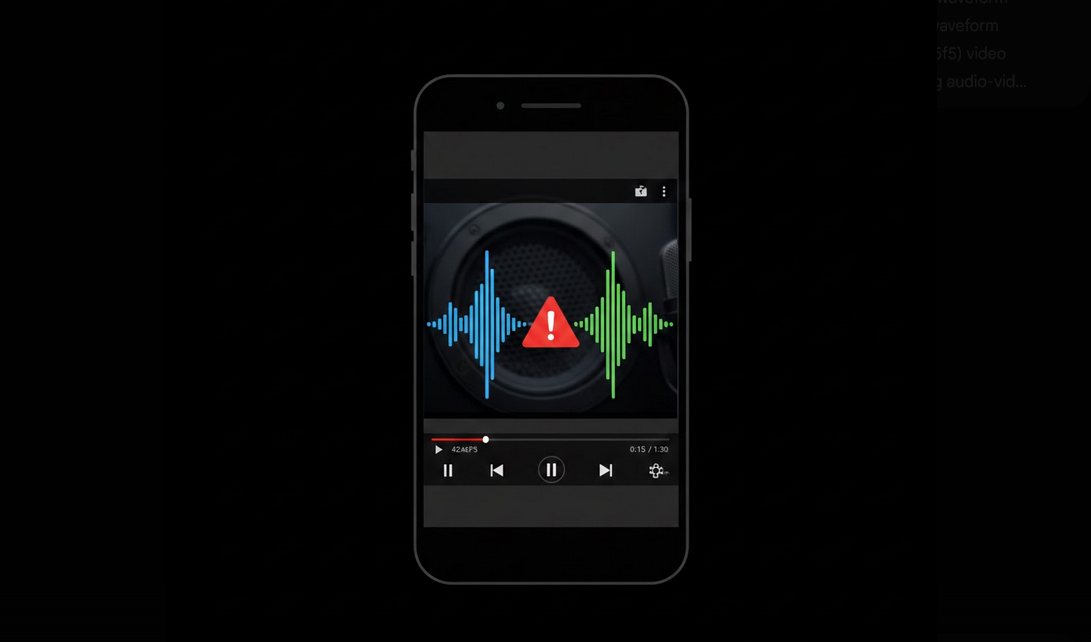
Audio sync problems on YouTube are incredibly frustrating. The speaker’s lips move but the sound arrives a fraction of a second too early or too late. Music videos feel off-beat, tutorials become confusing, and the entire viewing experience suffers. Audio desynchronization on Android can result from several causes, but most are fixable with straightforward troubleshooting steps.
Common Causes of Audio Sync Problems
- Bluetooth Latency: Wireless headphones and speakers introduce audio delay due to Bluetooth signal processing.
- App Cache Corruption: Accumulated temporary data can cause playback irregularities including audio timing issues.
- Outdated App: Older YouTube app versions may contain bugs that affect audio-video synchronization.
- Hardware Acceleration Conflicts: Device-level video processing settings can sometimes cause timing mismatches.
- Network Instability: Inconsistent internet speeds can cause video and audio streams to buffer at different rates.
- High Resolution Playback: Playing 4K or HDR content on devices with limited processing power can cause sync drift.
- System Resource Strain: Too many background apps consuming CPU and memory can impact playback timing.
Quick Fixes to Try First
- Restart the Video: Pause and resume playback, or close and reopen the video entirely.
- Switch to Wired Audio: If using Bluetooth, switch to wired headphones or the device speaker to eliminate wireless latency.
- Clear YouTube Cache: Go to Settings, Apps, YouTube, Storage, and tap Clear Cache.
- Lower Video Quality: Reduce resolution to 720p or 480p to decrease processing demands on your device.
- Close Background Apps: Free up system resources by closing apps running in the background.
- Restart Your Device: A full reboot clears memory and resets processes that may be causing the issue.
- Update YouTube: Check the Play Store for the latest app update which may include sync bug fixes.
Fixing Bluetooth Audio Delay
Bluetooth audio latency is the most common cause of sync issues on Android. Wireless audio processing introduces a delay that can range from barely noticeable to significantly disruptive depending on the codec and device.
- Use Low-Latency Codecs: If your headphones support aptX Low Latency or aptX Adaptive, enable them in Bluetooth settings for reduced delay.
- Check Developer Options: Enable Developer Options on Android, find Bluetooth Audio Codec settings, and select the lowest latency option your headphones support.
- Reduce Distance: Stay close to your device to minimize Bluetooth signal processing time.
- Try Different Headphones: Some Bluetooth devices have inherently lower latency than others.
Audio Sync on YouTube Vanced
YouTube Vanced handles audio-video synchronization the same way as the official app, but its additional features can indirectly help resolve sync issues. By blocking all ads, Vanced eliminates the processing overhead that ad loading causes, which can contribute to playback irregularities on lower-end devices. The resolution override feature lets you lock a manageable quality level that your device can process smoothly without sync drift.
With Vanced MicroG for account access, you can test different quality settings and save preferences that produce the smoothest playback on your specific device.
Advanced Troubleshooting
- Disable Hardware Acceleration: Some devices have an option to toggle hardware-accelerated video decoding in Developer Options. Disabling it can resolve sync issues caused by GPU processing conflicts.
- Factory Reset YouTube: Uninstall all YouTube updates to revert to the factory version, then update to the latest stable release.
- Check for System Updates: Android OS updates often include media framework improvements that fix audio timing bugs.
- Test on Different Networks: Try Wi-Fi and mobile data separately to rule out network-related buffering causes.
Who Experiences Audio Sync Issues Most
- Bluetooth Users: Anyone using wireless headphones, earbuds, or speakers with YouTube.
- Older Device Owners: Users with phones that struggle to process high-resolution video smoothly.
- High-Quality Streamers: Viewers watching 4K or HDR content on devices near their processing limits.
- Multitaskers: People running many apps simultaneously while streaming YouTube content.
Final Thoughts
Audio sync issues on YouTube are common but almost always fixable. Starting with simple steps like restarting the video, switching audio output, and clearing cache resolves most problems quickly. For persistent issues, adjusting Bluetooth codecs and video quality settings provides a lasting solution. Using YouTube Vanced reduces processing overhead through ad blocking and quality control, contributing to smoother and more consistent playback on any Android device.
